Announce to any speaker from Siri
Siri can announce to HomePods, but not to the Sonos, Google Cast or AirPlay speakers in the rest of the house. With RoomCall and an iPhone shortcut, you say "Hey Siri, run RoomCall Basement", dictate the message, and Home Assistant speaks it in the basement through your text-to-speech engine (for example Piper), with the RoomCall chime first.
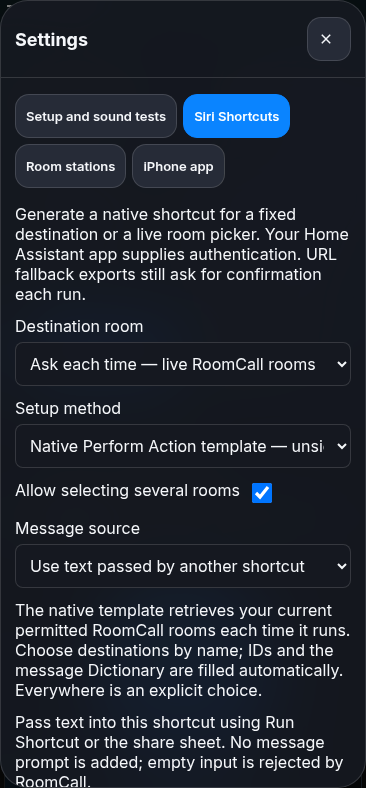
Set it up in three steps
- Install RoomCall in Home Assistant, add the integration and pick your speakers (Home Assistant guide). Make sure a text-to-speech engine is set up.
- On the RoomCall card, open Settings → Siri Shortcuts and choose the room. The panel
shows the exact steps for the Shortcuts app: Ask for Input → Dictionary → Home
Assistant Perform Action
roomcall.broadcast, with your room's ID filled in. - Name the shortcut "RoomCall Basement", run it once to grant permissions, then say "Hey Siri, run RoomCall Basement."
Want one shortcut that asks which room? The same panel builds a live room picker.
Limits
- It's text-to-speech, not your voice. Siri dictation becomes text, and Home Assistant speaks it. To send your own voice, hold to talk on the card, use the Apple Home camera tile, or the iPhone app.
- Don't call the shortcut "Intercom". Siri may run Apple's HomePod Intercom instead.
- The shortcut runs on your iPhone through the Home Assistant Companion app, so iOS may ask you to unlock the phone or confirm, depending on where you are.
- Generated shortcut files need signing. iPhones import only signed
.shortcutfiles; building the shortcut by hand from the panel's steps needs no file at all (options). - "Accepted" is not "heard". RoomCall reports that the speakers accepted the announcement, not that someone heard it.