Native iOS app
RoomCall includes a sideloadable SwiftUI iPhone/iPad app in ios/RoomCall.
It sends live microphone audio and typed announcements through your Home Assistant.
It uses an ordinary in-app microphone session; Apple's Push to Talk entitlement is
not required. The optional Apple Home camera bridge is a separate route.
What is implemented
- Home Assistant sign-in through
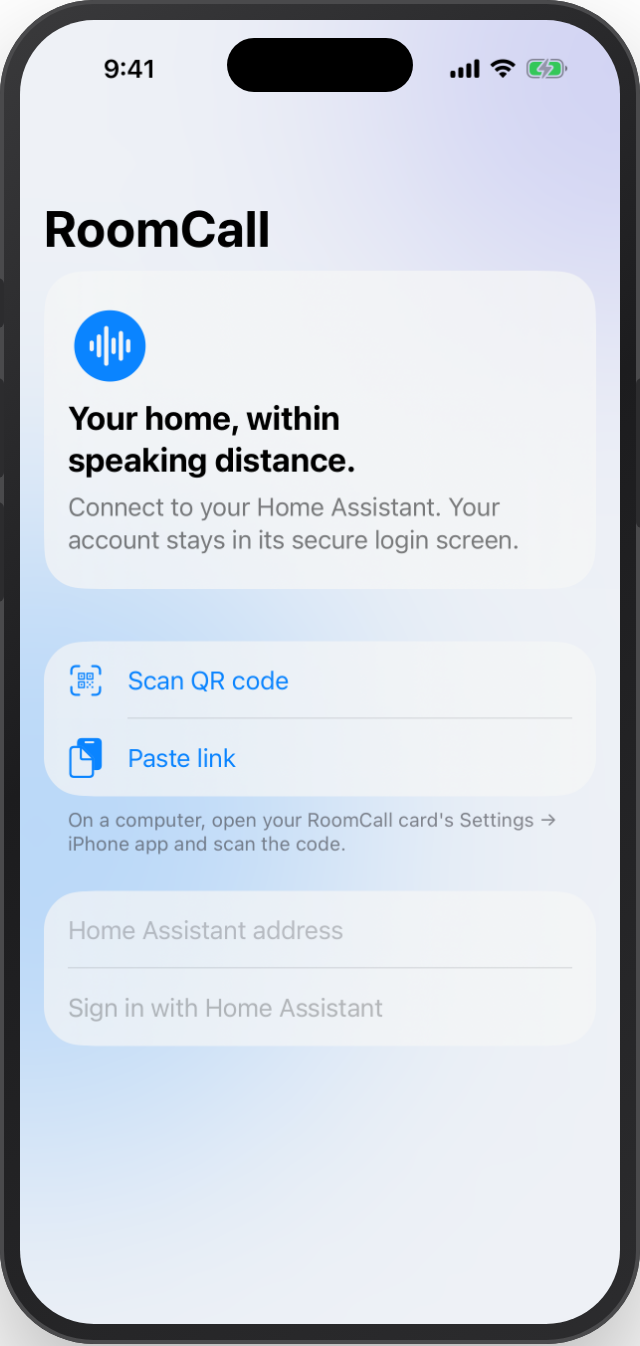
ASWebAuthenticationSession, state validation, SHA-256 PKCE, token refresh and device-only Keychain storage. No token to paste. - Connect by entering your HA address, or scan Settings → iPhone app on the RoomCall dashboard card. The QR code contains a server address, not credentials; you still sign in through Home Assistant.
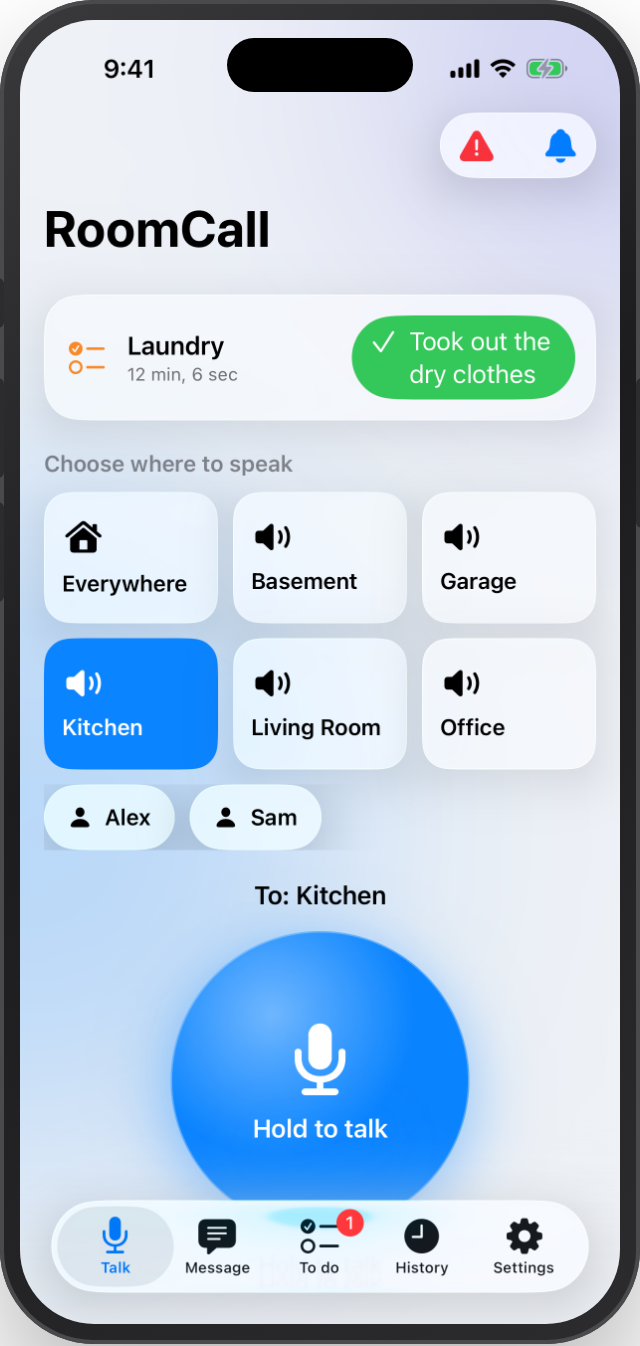
- Talk: pick a room, Everywhere or a person, then hold the microphone button. Release to finish. VoiceOver users double-tap to start and again to stop. Capture starts only after the local action and microphone permission. After release, the app confirms playback-request acceptance without waiting for transcription/history processing. It does not claim the audio was heard. Slow or queued destinations can take longer to accept an Everywhere call; if confirmation is lost, inspect history before sending the same message again.
- Ordered, bounded live WebSocket audio in mono 16 kHz PCM. Releasing while connecting sends no recording. Accepted playback remains separate from audibility.
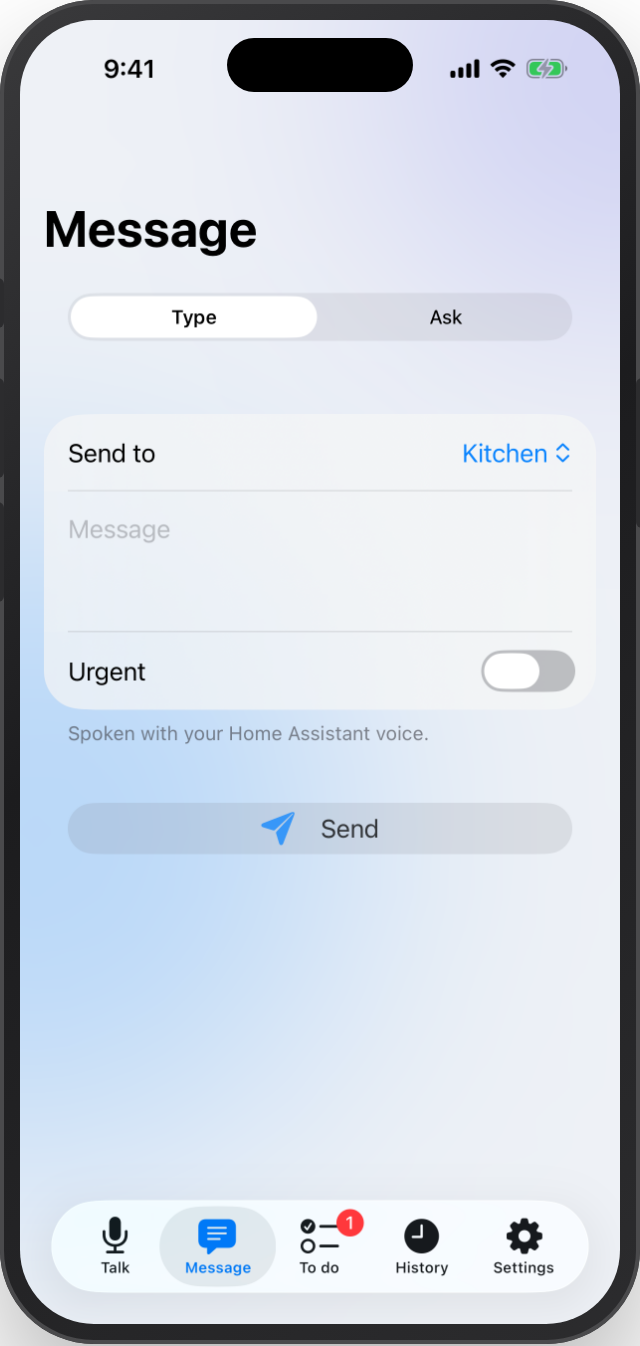
- Message: type to speak in the selected destination, or ask a compatible Assist satellite and read its transcribed response.
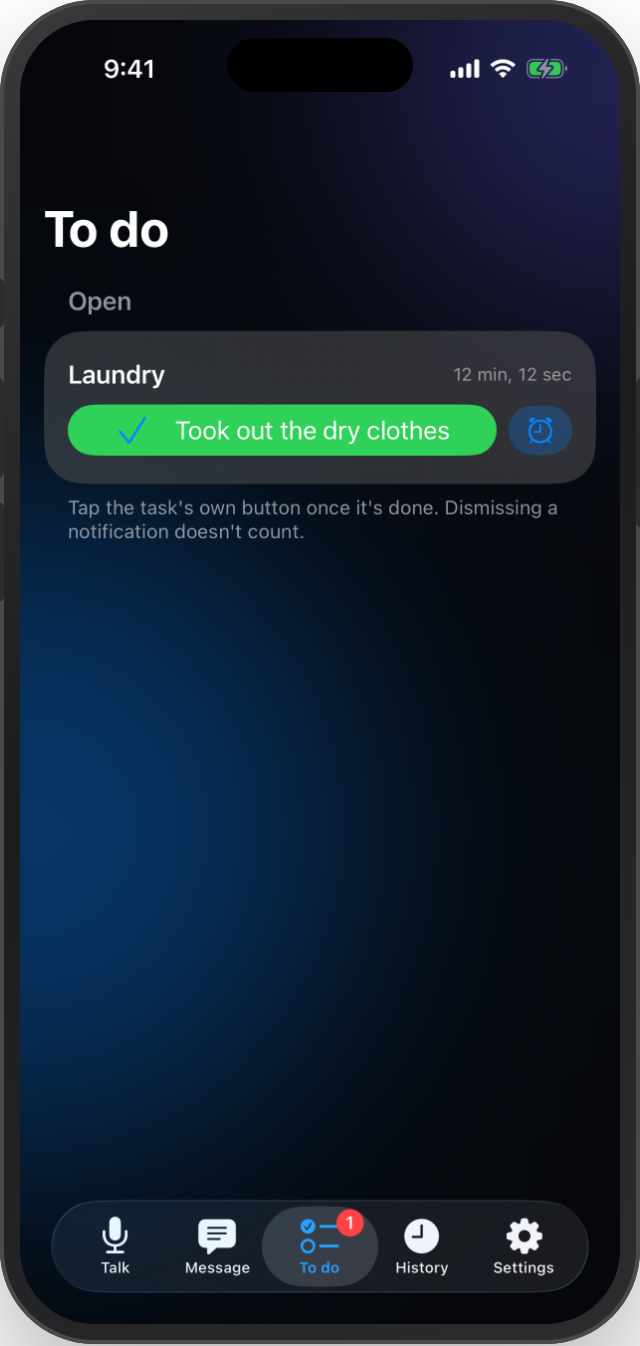
- Tasks: complete or snooze announcement tasks; History: read and reply to calls.
- Settings: select this phone's usual room for replies, see the server and sign out.
- Appearance: Glass (the default: frosted Liquid Glass surfaces on iOS 26, room tiles and a
glossy talk button), Material (a tonal palette generated from your colour, with a gradient
talk button) or Standard iOS; light, dark or follow the iPhone; and a button colour (five
presets or any colour). The home-screen widgets use the same colour. These match the dashboard
card's
appearance,themeandcoloroptions but are set separately on the phone. Do Not Disturb and urgent controls are available in the room interface. - Foreground doorbell detection with a snapshot and an action opening the HA camera. Two-way visitor audio depends on that camera's HA support.
- Siri/Shortcuts room entities and typed announcements, Control Center controls, a task widget and task Live Activities with a completion action.
- Dynamic Type, accessibility labels, light/dark appearances and five languages. Native translations are generated from the integration catalogs.
Requirements and installation
- Use the current RoomCall integration release for the complete app features. RoomCall 0.10.0 introduced callback metadata; task and doorbell features need later versions.
- Home Assistant 2026.10 or later for the app's PKCE sign-in flow. This is separate from the integration's compatibility tests against HA 2026.2.3 and 2026.10.2.
- iOS/iPadOS 18 or later is the deployment target; particular controls also depend on the installed OS. See the CI logs for the SDK and simulator actually tested.
- A signed build is required on a physical phone. CI produces an unsigned IPA; it cannot be installed by simply opening the file. Sign it with your own Apple identity using a compatible sideloading tool, or build with Xcode. Signing must cover the app, widget extension and matching app group. Tool/account limitations apply.
There is no App Store or TestFlight distribution configured. Find the simulator and unsigned-device artifacts in successful iOS workflow runs. Artifact downloads require GitHub access and expire according to GitHub's retention policy. The 0.18.2 release also attaches RoomCall-0.18.2-unsigned.ipa (build 3) and a source/checksum record. It is a separate CI artifact, outside the integration/Python provenance bundle.
Publishing an unsigned IPA does not require a paid Apple membership. Free Xcode Personal Team provisioning expires after seven days and limits capabilities; signing-tool support for this app's extension/app group must be checked. TestFlight and App Store distribution require the publisher's paid Developer Program membership; testers do not need paid developer accounts. See Apple's account limits and distribution options.
Use a trusted HTTPS HA address. Local networking is permitted, but certificate validation is not bypassed and App Transport Security is not globally disabled. Actual reachability depends on the address, phone and network.
Build and connect
brew install xcodegen
python3 scripts/ios_localizations.py --check
xcodegen generate --spec ios/RoomCall/project.yml
open ios/RoomCall/RoomCall.xcodeproj
Choose the RoomCall scheme and your signing team. If bundle identifiers change,
update the matching app group in project.yml and RoomCache.defaults in
Shared/Models.swift. Generated projects, plists and entitlements are ignored;
project.yml is their source.
Install the signed app, enter the HA address or scan the card's connection QR code, and sign in. Pick a destination and hold to talk, or use Message to type. Opening the app, a room control or a connection link never starts the microphone.
New sign-ins use the public client ID
https://daredoole.github.io/RoomCall/ios-client.html, which advertises only
roomcall://auth-callback. HA must be able to fetch this small HTTPS page to validate
the redirect. Credentials, authorization codes and tokens are sent only to your HA
server; PKCE and state validation still apply. Existing saved credentials retain
their original client ID for refresh. The local /roomcall/ios metadata endpoint
remains available for older clients.
Sign-in errors
- TLS / secure connection failed: if the server uses a private CA, install and explicitly trust that CA on the iPhone under General → About → Certificate Trust Settings. A Safari exception alone is not system-wide trust. The app continues validating certificates.
- Invalid redirect URI: update the iPhone app to 0.18.1 or later. Earlier builds ask HA to fetch its own local HTTPS callback metadata, which fails when HA does not trust that server certificate. Allow outbound HTTPS from HA to the public metadata URL above. Updating only the HA integration does not replace an already-installed iPhone build.
Platform boundaries
The app broadcasts outbound audio. It does not provide an always-listening background receiver, join HomePod's built-in Intercom system, make other speakers Siri accessories, or register a native Home app Intercom tile. It does not use system Push to Talk channels.
Tasks and doorbells refresh while the app is open. Live Activities and widgets do not supply a background push service. Background incoming calls or remotely refreshed activities need additional provisioning, a push service and physical-device testing. The optional camera bridge remains the route for room talk buttons inside Apple Home.
Validation
Native CI checks translation synchronization on every PR. Changes to native sources or resources run unit, UI and screenshot tests plus an unsigned device build. Main and manual workflow runs also build the app. The device build includes the widget/ Control Center extension and Live Activity. Successful builds upload the IPA and simulator result bundles.
Simulator tests cover sign-in validation, PKCE/state, storage, audio conversion, API errors, message/task controls, doorbell presentation and large text. They cannot prove physical microphone routing, speaker audibility, background wake-up, signing or App Store eligibility. Python's 100% statement coverage gates cover the HA integration and standalone server, not Swift or JavaScript execution. Browser QA separately exercises narrow/fixed-height layouts, keyboard access and WebRTC cleanup.
Screenshots
These are actual simulator captures from debug-only demo mode, with sample rooms and no server credentials. They illustrate the interface, not real speaker delivery. Their source run, hashes and refresh instructions are in the screenshot record. Frame exported CI captures with:
python scripts/ios_mockups.py path/to/ios-screenshots