Home Assistant
RoomCall is a native Home Assistant integration. It runs inside Home Assistant, so there is no separate server: your speakers are the media players Home Assistant already controls, and your rooms are Home Assistant areas.
Before you start
- Home Assistant 2025.6 or newer, with HACS installed.
- HTTPS or the companion app for the microphone. Browsers only allow the mic on secure pages, so open Home Assistant through Nabu Casa, a reverse proxy, Tailscale, or the mobile app.
- A reachable internal URL. Speakers download each clip from Home Assistant. Check
Settings → System → Network → Local network is an address your speakers can reach
(for example
http://192.168.1.10:8123).
1. Install

Click Download, then restart Home Assistant.
- HACS → ⋮ → Custom repositories.
- Add
https://github.com/daredoole/RoomCallas type Integration. - Search RoomCall → Download → restart Home Assistant.
Download roomcall.zip from the
latest release, unzip it into
/config/custom_components/roomcall/ and restart Home Assistant.
2. Add the integration

Or go to Settings → Devices & services → Add integration → RoomCall.
Pick your speakers. Everything else is under Configure on the integration:
| Option | Default | What it does |
|---|---|---|
| Speakers | announce-capable players | Media players that make up the intercom |
| Announcement volume | speaker's current volume | Fixed volume for calls (Sonos) |
| Microphone boost | 0 dB | Raise if phone recordings sound quiet |
| Text-to-speech engine | your default | Used by roomcall.broadcast messages |
| Chime → chime | Walkie-talkie chirp | Chirp, ding, double beep, rising tones, doorbell, or none |
| Chime → custom file or URL | — | Your own sound, e.g. /config/www/chime.mp3; overrides the chime |
| Delivery → delay between speakers | 250 ms | Stops several Sonos in one home from dropping the same announcement |
| Delivery → retry | on | Tries a failed speaker once more after a second |
| Delivery → urgent call volume | 0.8 | Volume for urgent calls |
| Quiet hours → start / end / volume / rooms to skip | off | Quieter calls at night that skip bedrooms |
| Notifications and replies → phones | none | Phones notified about each call (not the caller's own) |
| Notifications and replies → dashboard | — | Path of the dashboard with the card; adds a Reply button |
| Notifications and replies → speech-to-text | none | Adds what was said to notifications and history |
One entity per speaker
A physical speaker often has several media players (native Sonos plus Music Assistant, Cast plus Android TV…). Pick one per speaker so messages do not play twice. RoomCall suggests announce-capable native entities and skips Music Assistant mirrors by default.
Rooms come from areas
Each speaker's room is its entity area, or its device area. Speakers without an area only play when you talk to Everywhere — assign them in Settings → Areas.
3. Add the push-to-talk card
The integration registers the card automatically — no dashboard resource needed. Edit a dashboard → Add card → RoomCall, or paste:
type: custom:roomcall-card
title: Intercom
# optional:
room: kitchen                  # where this card is; replies come back here
default_room: basement         # room preselected
rooms: [kitchen, living_room]  # limit the room buttons
people: true                   # person buttons (true, false, or a list of person entities)
history: 3                     # recent calls to show (0 to hide)
layout: default                # default, compact or kiosk
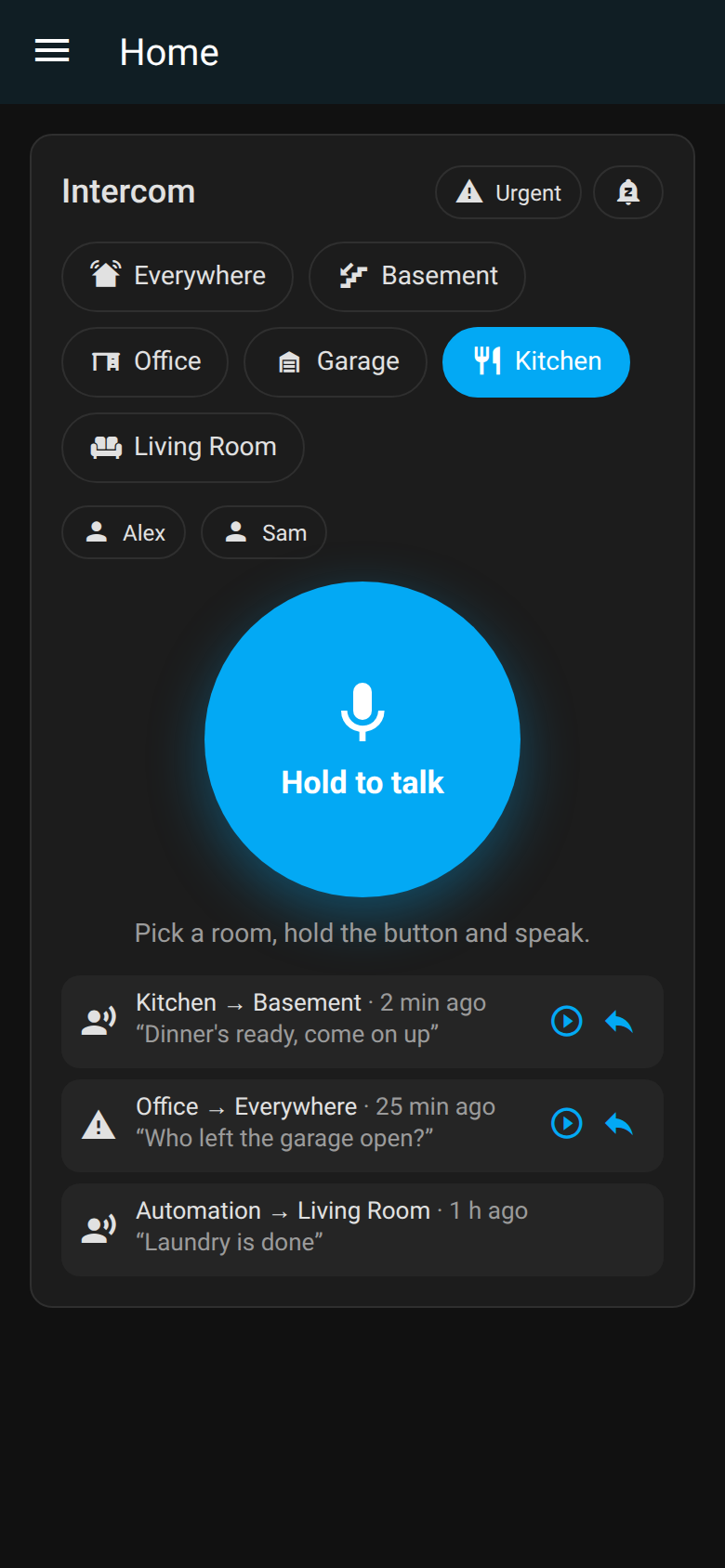
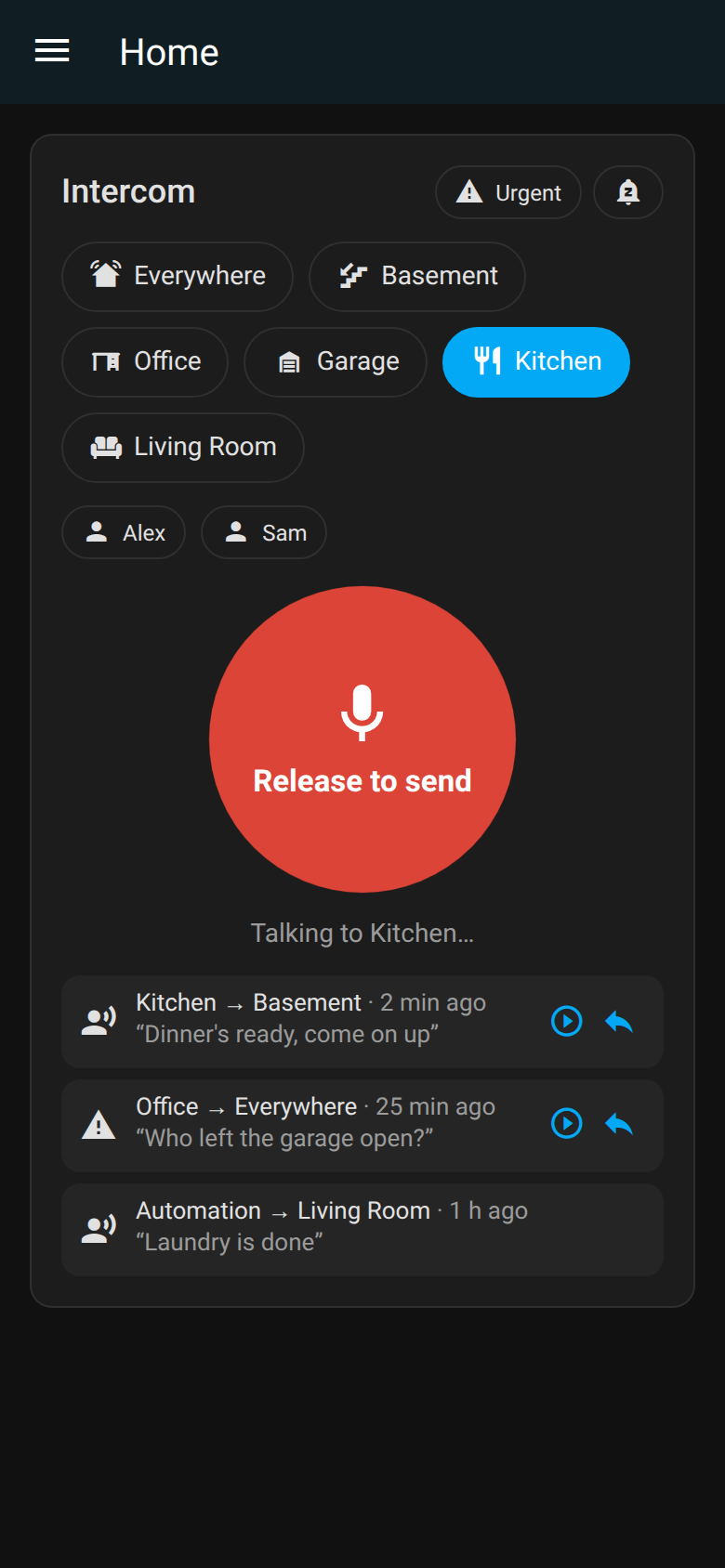
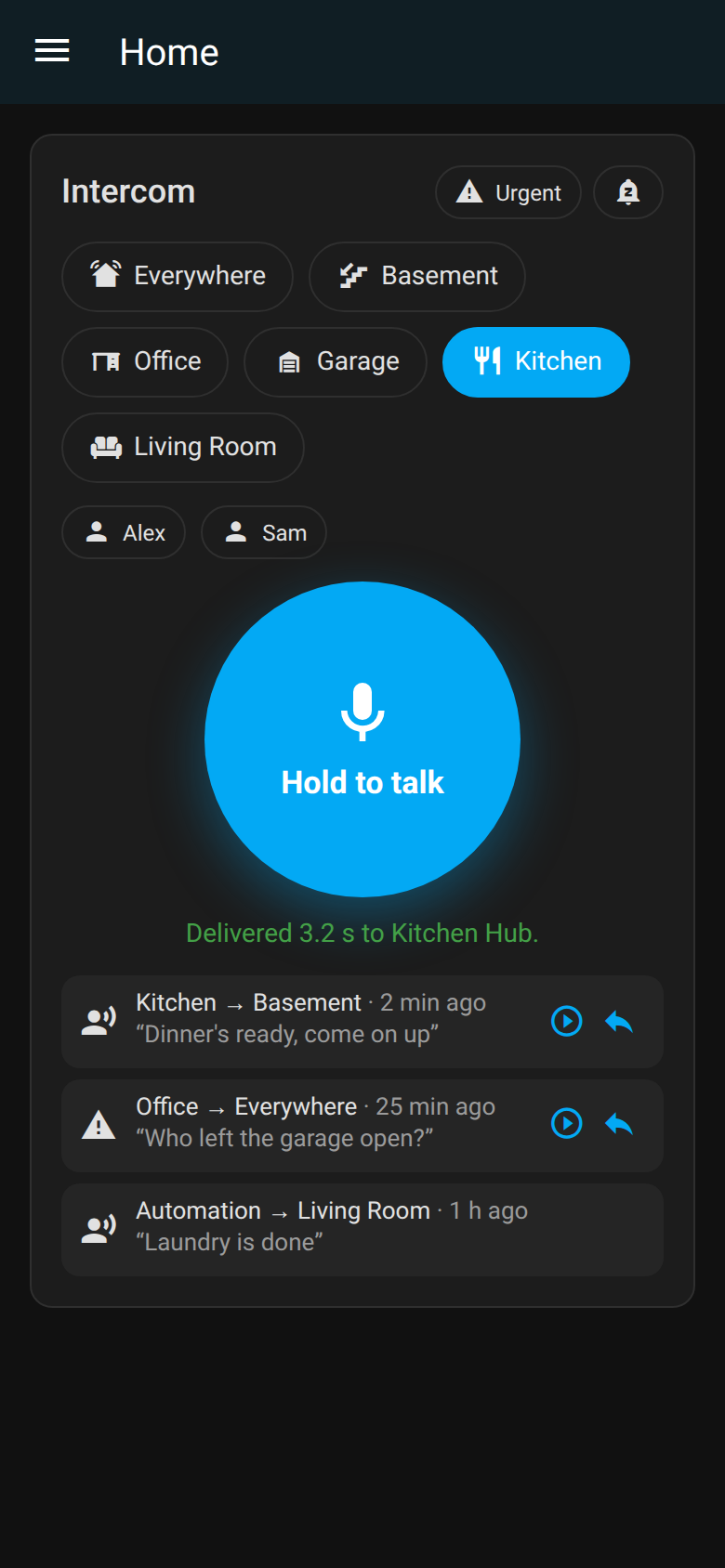
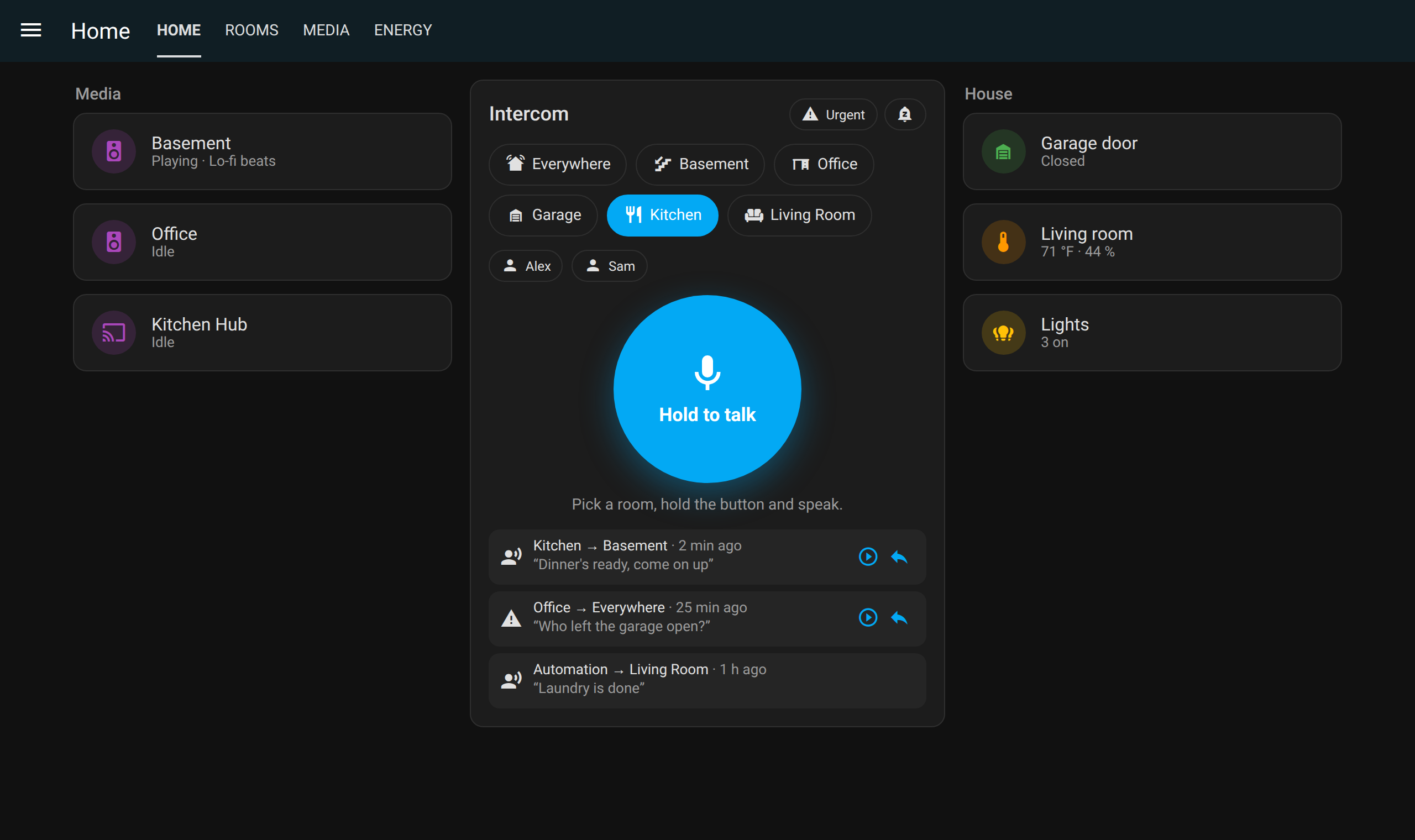
Hold the button, talk, release. The card plays the chime and then your message in the chosen room, and reports which speakers played it. If your microphone records silence (wrong input selected), the card says so instead of sending an empty clip.
- Urgent (top right) plays the next call at the urgent volume and ignores Do Not Disturb and quiet hours.
- Bell toggles Do Not Disturb: only urgent calls play while it's on.
- People buttons call whoever you tap in the room they're in (see Call a person).
- Recent calls can be replayed in the browser, and Reply aims the card back at the caller.
Layouts
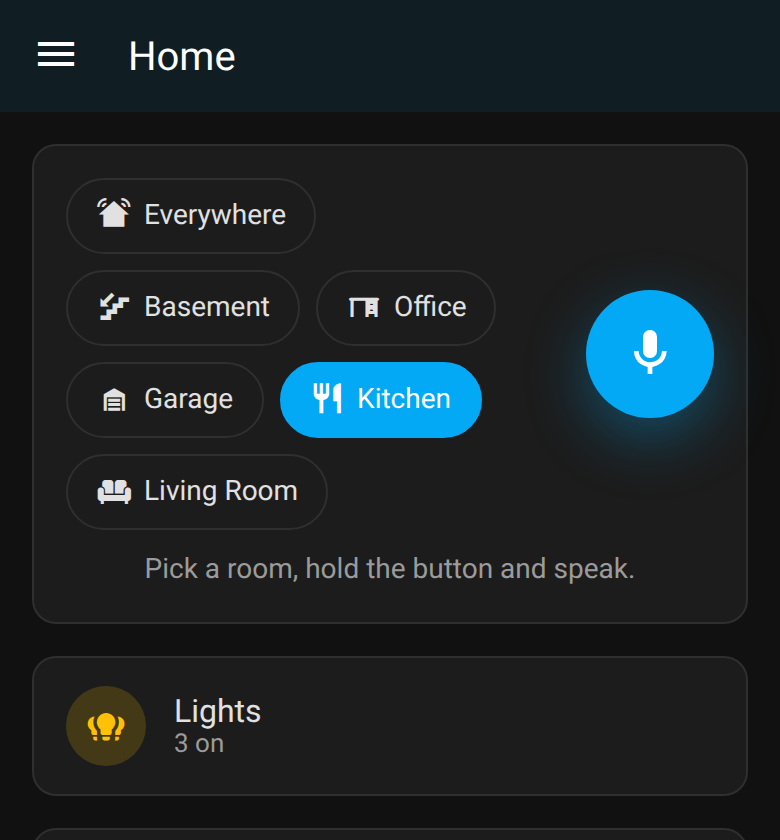
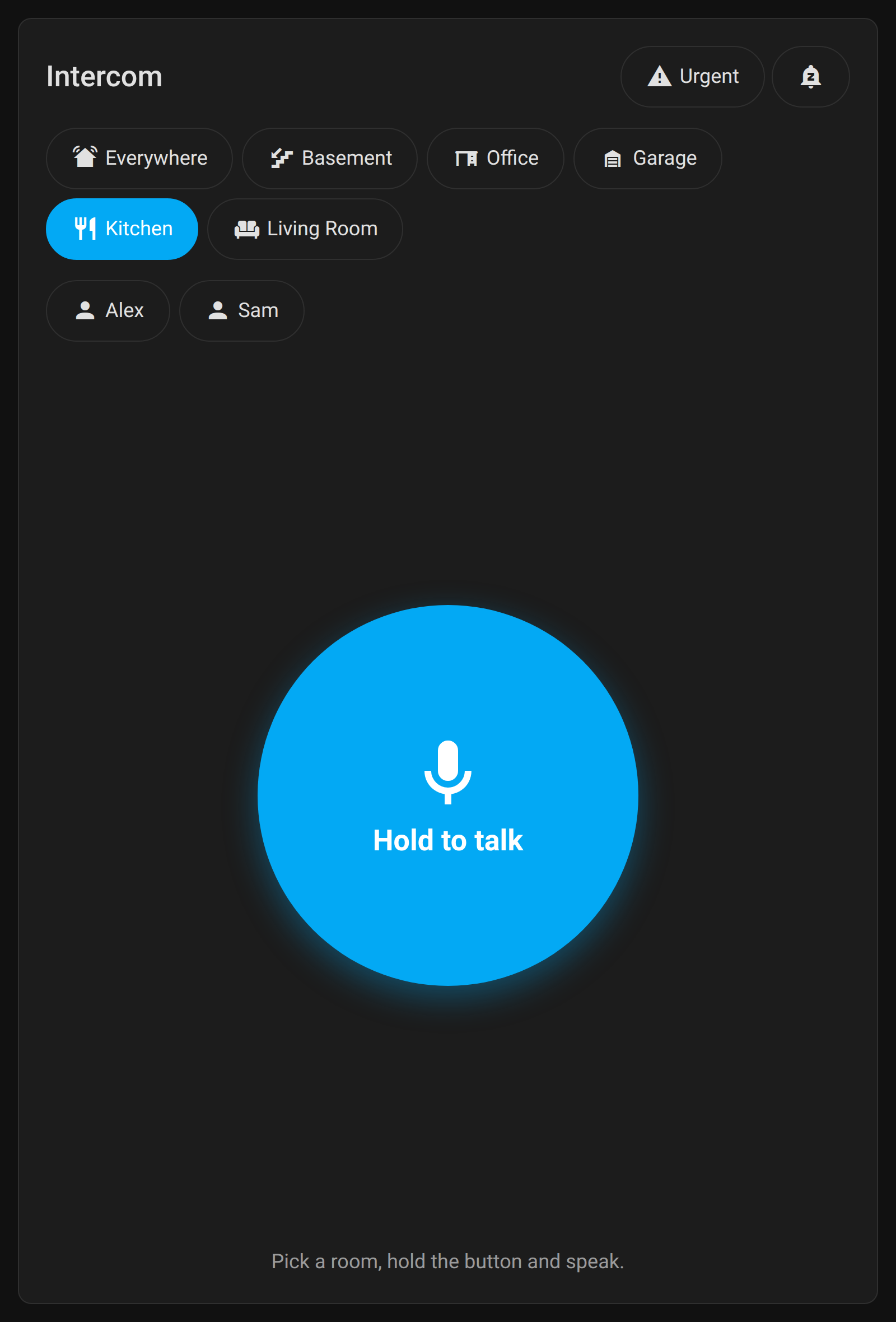
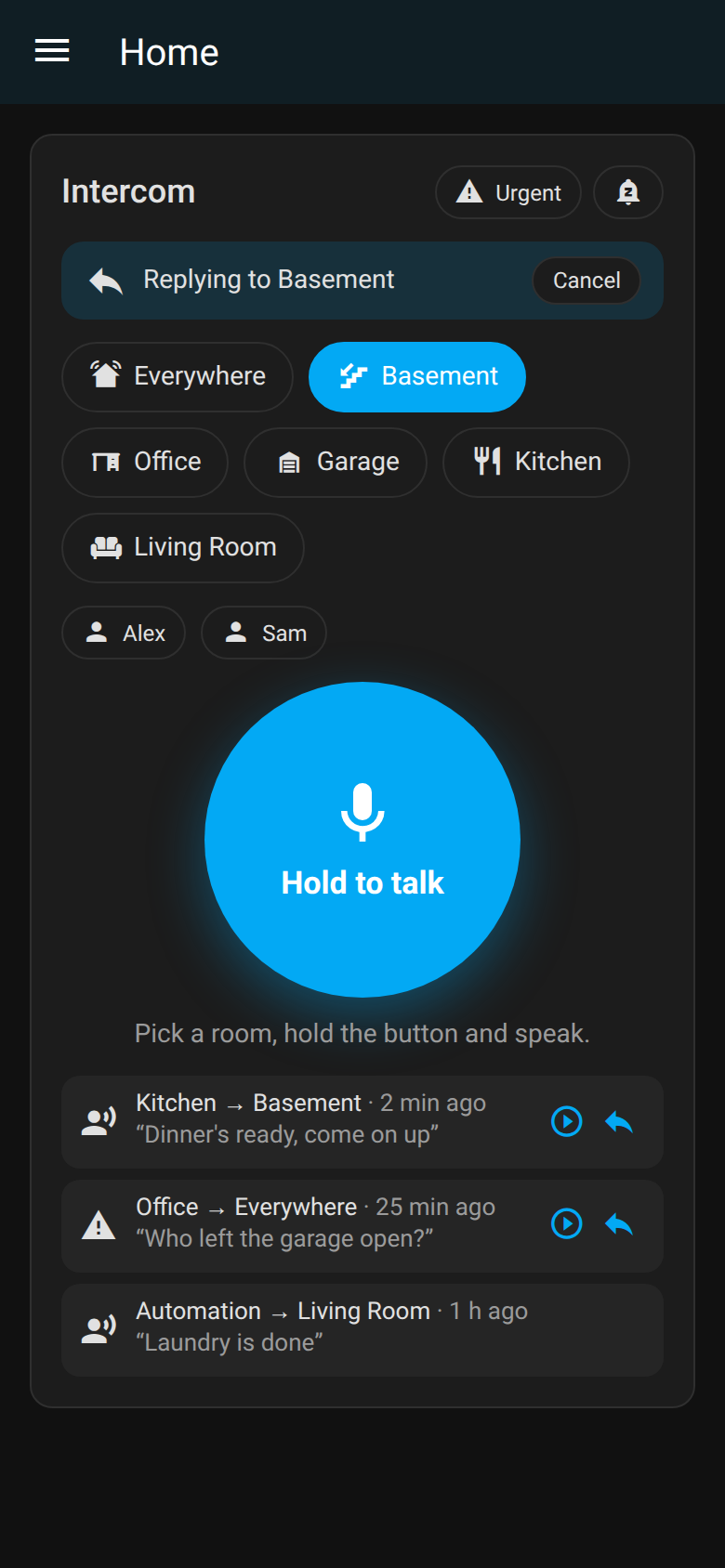
compact fits a single row of a dashboard. kiosk is a big button for a wall tablet.
Replies
With phones and a dashboard path set, every call sends a notification such as Kitchen → Basement: "dinner's ready" with a Reply button. Tapping it opens your dashboard with the card already aimed back at the caller's room, so you just hold and talk. The caller's own phones are skipped.
For replies to know where a call came from, set room: on each card (for example the kitchen
tablet's card gets room: kitchen).
Why the speaker can't hear your reply
Sonos, HomePod and Nest speaker microphones are reserved for their own voice assistants, so replies come from a phone or tablet. Mic stations next to each speaker are on the roadmap.
AV receivers and TV boxes
Speakers that support announce (Sonos, Google/Nest, HomePod) mix the call over your music. Others — AV receivers through HEOS, Android TV / Google TV boxes such as onn through Cast — have to stop what they're doing to play the call. RoomCall puts them back afterwards:
| Before the call | After the call |
|---|---|
| Receiver on the TV input | Switched back to the TV input, same volume |
| Receiver off | Turned back off |
| TV box in Netflix, YouTube… | The same app reopened (where you were in it is up to the app) |
RoomCall finds the receiver's input and the box's foreground app through the other media players
for the same device model in the same room: the receiver's denonavr entity and the box's
Android TV Remote entity. Add both integrations for the best result, and pick the HEOS entity
(receiver) or Cast entity (TV box) as the RoomCall speaker.
Receiver plus TV box in one room
If the TV box plays through the receiver, add only the receiver as a speaker. The call then interrupts the sound for a few seconds while the picture keeps going.
Turn this off under Configure → Delivery → Put speakers back after a call.
Do Not Disturb and quiet hours
switch.roomcall_do_not_disturb: while on, normal calls are refused and urgent calls still play. Turn it on in your bedtime routine.- Quiet hours (Configure → Quiet hours): calls play at the quiet volume and skip the rooms you pick (for example the kids' rooms). The card tells you which rooms were skipped.
Call a person
people: [person.alex] in the action, or a person button on the card, plays wherever that
person is right now. RoomCall follows the person's device trackers to a room-presence sensor
(any sensor.*_area on the same device, as Bermuda
creates), or uses a tracker or sensor whose state is an area name. If it can't tell where they
are, the call is refused instead of playing in the wrong room.
roomcall.broadcast action
Speak a message (text-to-speech) or play an audio URL in rooms or wherever people are:
action: roomcall.broadcast
data:
  areas: [kitchen, basement]   # omit for every RoomCall speaker
  message: Dinner is ready
  volume: 0.4                  # optional, Sonos
action: roomcall.broadcast
data:
  people: [person.alex]
  message: Your ride is here
  priority: urgent             # louder, ignores Do Not Disturb and quiet hours
action: roomcall.broadcast
data:
  areas: garage
  media_url: http://homeassistant.local:8123/local/chime.mp3
With Chime TTS installed, messages get the same chime as push-to-talk. The action returns which speakers played the message, so scripts can react:
- action: roomcall.broadcast
  data: { areas: basement, message: "Laundry is done" }
  response_variable: call
- if: "{{ not call.ok }}"
  then:
    - action: notify.mobile_app_phone
      data: { message: "Basement speaker missed the laundry call" }
Siri, Apple Watch and CarPlay can call this too — see Siri and Shortcuts.
Entities
sensor.roomcall_last_call: time of the last call, with attributestarget,from,kind(talk,message,media),priority,delivered,failed,skipped,text, andhistory(the last 10 calls).switch.roomcall_do_not_disturb: see above.
How playback works
Recordings are converted to MP3 with Home Assistant's ffmpeg (with the chime in front), kept in
memory for two minutes behind an unguessable URL, and handed to each speaker with
media_player.play_media, a short moment apart. Speakers that support it get announce: true,
so Sonos lowers the music instead of stopping it.
Uploads, history and replays require a signed-in Home Assistant user. Clip and chime URLs are unauthenticated because speakers cannot sign in, which is why clips are random and short-lived. The last 20 calls are kept in memory for 24 hours for replay; they are not written to disk.
Keep the internal URL on plain http
Speakers download clips from Home Assistant's internal URL. If you put Home Assistant behind
a reverse proxy with a home-made certificate for the microphone, leave the internal URL on
http://<ip>:8123: Sonos and Cast speakers can't trust a home-made certificate.